
You want to sell a used board from your school and offer another size from your supplier. Both can appear on the same product page if they belong to the same model and model year. The buyer needs to know which size is in stock and which one takes longer to arrive.
Product, variant, stock item and supplier variant
| Term | What it means in the shop |
|---|---|
| Product | The shared page for a product, such as a particular wingfoil board. Set its name, description and general photos here. |
| Variant | A specific option on that page, such as a used 95-litre board or a new 105-litre board. Size, colour, condition and price can vary. |
| Stock item | A physical unit in your inventory. If it is available for sale and linked to the product, you can offer it from your own stock. |
| Supplier variant | An option you source from a supplier. You configure its price, availability and whether guests request it or buy it with a lead time. |
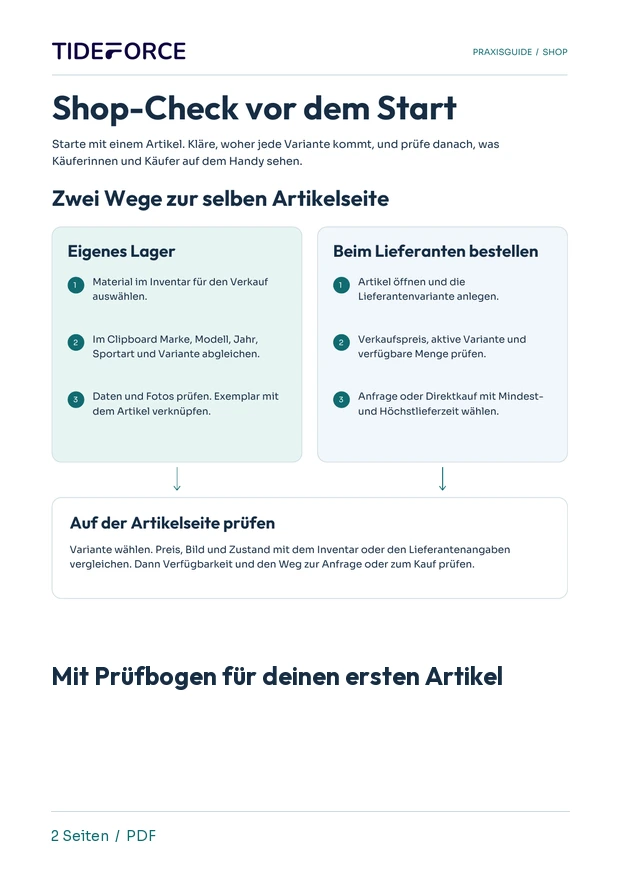
Two routes to the same product page
Local stock
Inventory item → Clipboard → check the product and variant → link the stock item
Supplier order
Open the matching product → add a supplier variant → set request or direct purchase with a lead time
Check the shop
Select a variant → check price, image and availability → check the request or purchase action
Add a stock item through the Clipboard
- Select inventory. Add the items you intend to sell to the Clipboard. Start with one model so you can verify the link and the storefront easily.
- Check the target product. Compare brand, model, model year and sport. Open the existing variants and check size, condition and price. Link the unit to the matching product. Use a separate product for a different model year.
- Review details and photos. Decide which information and images to carry over. Use photos of the actual unit to show its condition. For a linked variant, check whether the edit should also change the underlying inventory item.
- Confirm the link. Check visibility before saving a new product. When merging stock into an existing product, review the match before confirming because this updates the existing listing.
Offer supplier variants by request or for direct purchase
Open the matching product and add a supplier variant. Enter details such as size, sale price and photos if needed. Check that the variant is active and review any quantity you set.
| Situation | Setting |
|---|---|
| You need to confirm availability or timing with the supplier first. | On request. The guest submits a request. Your team checks availability before confirming. You can also show an estimated lead time. |
| You can source the item within a reliable timeframe. | Direct purchase with a lead time. Set the minimum and maximum number of days so guests can see how long they may wait before buying. |
Check your first product as a guest
Open the example board on a phone in an approved test or preview environment. Switch between the used size in stock and the size you order. Do the image, condition, price and availability match the selection? Does the supplier option show the expected request action or lead time? Continue as far as the cart or request review. Use a designated test environment to complete a test order.
Use the PDF shop checklist to record what should appear, what you actually see and who will fix any issues. For background, read Why your inventory should be connected to your shop.
01Why does my shop product have no price?
+
First check that there is at least one variant that guests can buy or request and that it has a sale price. Then check product visibility, whether the linked stock item is available for sale and, for supplier variants, whether the variant is active and has available quantity.
02Can I combine local stock and supplier variants?
+
Yes. A product can contain linked stock items and supplier variants. Check what guests see for price, availability and lead time for each option.
03Can I add photos of one specific used board?
+
Yes. Add or select photos of that unit for its variant. After saving, switch to that variant on the storefront to check which image appears.
Practical knowledge for every watersports school
Pre-launch Shop Checklist
Check one product from a guest’s point of view. This German-language PDF maps both routes into the shop and gives your team space to record the results.
- Check stock items and supplier variants
- Verify prices, images and availability on mobile
- Compare the request or lead time with what you configured
PDF · A4 · 2 pages · German
How does this work at your school?
Bring an everyday task from your school. We’ll show you how it could work in TIDEFORCE.
Request a demo →